
Keep payment setup and daily order review easy to follow. Start by learning the order views, then review the checkout choice that fits your business. These steps do not ask you to submit a payment or complete a purchase.
Review orders
Use the view that matches the task in front of you. This makes it easier to find an order without treating every order as ready to ship.
- From Control Panel Home, open Orders / Order Export.
- Use Pending Orders to review pending entries. Use All Orders when you need a broader view.
- Choose Orders Paid but not shipped, Orders Not Paid and not shipped, Orders Completed, or Archived Orders as appropriate.
- Find a specific order with the search fields, such as order number or invoice number. Review the order and its payment details before taking action.
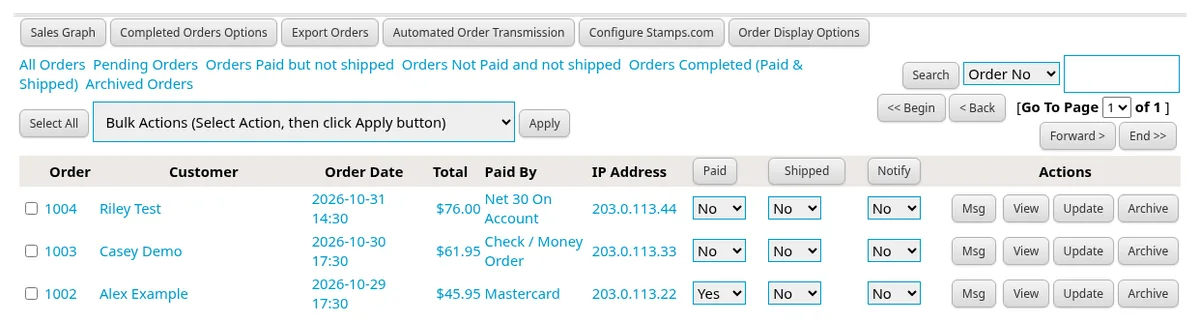
The page offers invoice, packing list, and shipping label templates. It also has bulk actions for updating selected orders, including payment, shipping, and customer notification actions. Check the selected orders carefully before applying an action. A pending entry by itself is not proof that you have received payment. Confirm payment with your payment provider before treating an order as paid.
Review payment setup
Choose a payment service your business uses so customers see suitable payment options. The settings shown depend on the checkout type you select.
- From Home, open Checkout Type / Payment Options.
- Open the Checkout Type list. Review the available choices before changing the current selection.
- Select the relevant choice to display its settings. Review those settings without submitting a customer purchase.
- For a separate checkout test, use your gateway’s test setup. Where its settings offer Test / Sandbox, select that mode and follow the gateway’s test instructions.

The list includes PayPal choices, Stripe, Square, Authorize.net AIM, Authorize.Net Accept Hosted, Clover, Virtual Merchant, NMI Gateway Services, and TransFirst. It also includes Offline Checkout, Checkout Disabled, and No Credit Card (Net 30 etc.). Choose from the list in your Control Panel; these are separate choices, not a promise that every account is ready to accept payments.
Offer offline or on-account choices
Offline and on-account choices let you describe payment arrangements you actually offer. Keep their wording clear so shoppers understand what they must do next.
- In Checkout Type / Payment Options, review Offline Checkout or No Credit Card (Net 30 etc.) if either fits your business.
- Under Payment Methods, review the card types, Net 30 On Account, or a custom payment type.
- Choose each method’s Payment Mode: online & offline, online only, or offline only. Review the settings before saving changes.
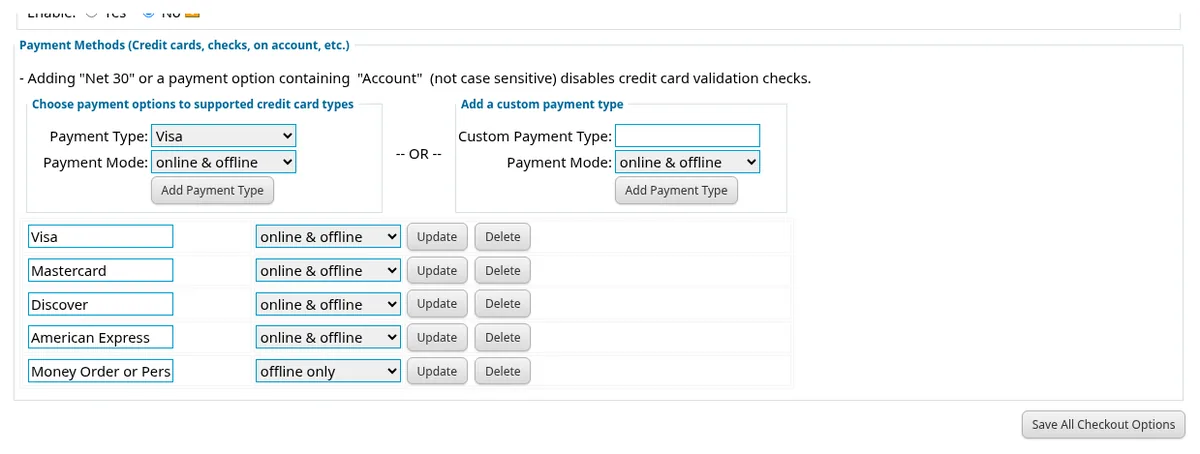
The panel notes that Net 30 or a payment name containing Account disables credit card validation checks. It also allows up to three checkout questions, with required answers or dropdown choices. Ask only what you need to fulfill the order. Continue with shipping choices to review delivery charges.
Questions about your shop? Contact us for help with your next step.