
Choose how your shop handles limited stock before you depend on it for customer orders. Stock control lets you decide whether shoppers can order beyond the quantity available and what they see when that happens.
Choose a stock mode
Pick the behavior that fits your business. A shop that accepts backorders needs a different message from a shop that sells only what is on the shelf.
- Open Inventory in the Control Panel, then Inventory Count Control.
- Read the five modes below. Decide what shoppers should see when the quantity they request is unavailable.
- Choose the matching value in Set Inventory Control Mode.
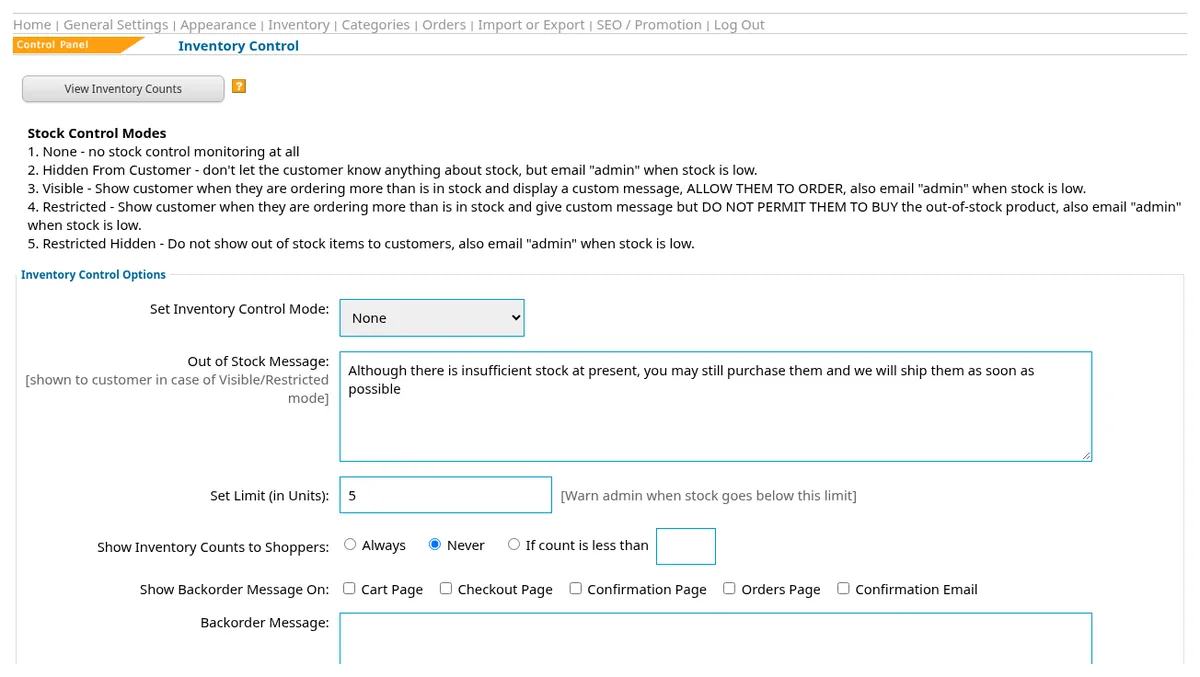
- None
- No stock monitoring is used. Stock control does not show stock warnings or limit purchases.
- Hidden From Customer
- Shoppers are not told about stock levels and may order. The shop emails the administrator when stock is low.
- Visible
- Shoppers see your custom message when they request more than is in stock. They can still order. Low stock also triggers an administrator email.
- Restricted
- Shoppers see your custom message when they request more than is in stock. They cannot buy the unavailable quantity. The administrator also gets low-stock email.
- Restricted Hidden
- Out-of-stock items are hidden from shoppers. The administrator still gets low-stock email.
Set messages and warnings
A useful message tells shoppers what to expect. A warning limit gives you a point at which to review your supply before more orders arrive.
- In Inventory Count Control, enter an Out of Stock Message for Visible or Restricted mode. Describe your actual ordering policy.
- Set Set Limit (in Units). For example, 5 means the administrator is warned when stock is at or below 5 (5 or fewer).
- Review Show Inventory Counts to Shoppers: Always, Never, or only below a chosen count.
- Review the backorder message and its page and email choices if you use backorders. Click Save Settings.

Maintain item counts
Current quantities make your stock policy useful. Check the physical quantity before updating an item, especially when you also sell through another channel.
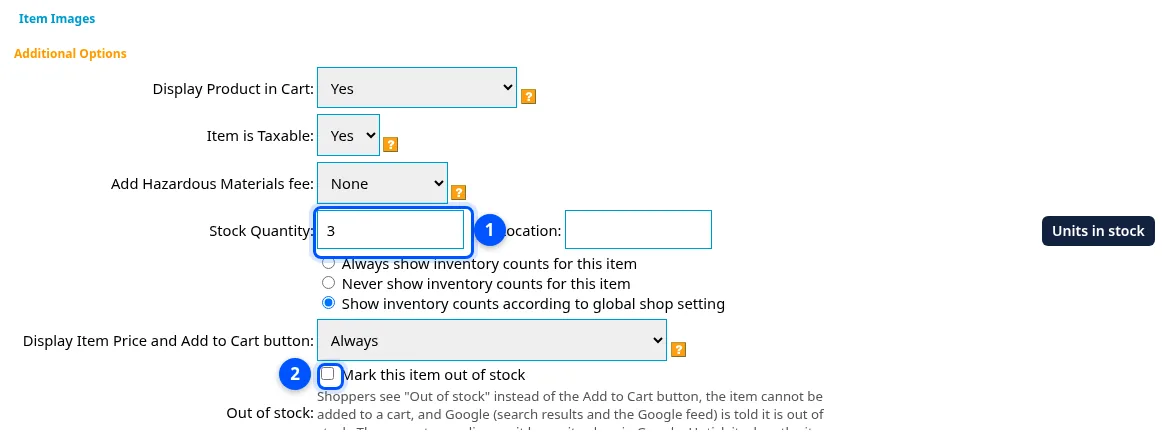
- Open Inventory and edit a physical product.
- Review its stock count and out-of-stock checkbox. Enter the quantity that matches what you can sell.
- Save the item, then check its shopper page against the mode you selected. Repeat for other physical products as needed.
For product choices and photos, return to products, photos, and options. When checking a sale, use orders and payments to review its payment and shipping status.
Questions about your shop? Contact us for help with your next step.