
Help shoppers choose with clear product names, useful photos, and straightforward choices. Start with one item, check it carefully, then use the same approach for the rest of your catalog.
Organize categories
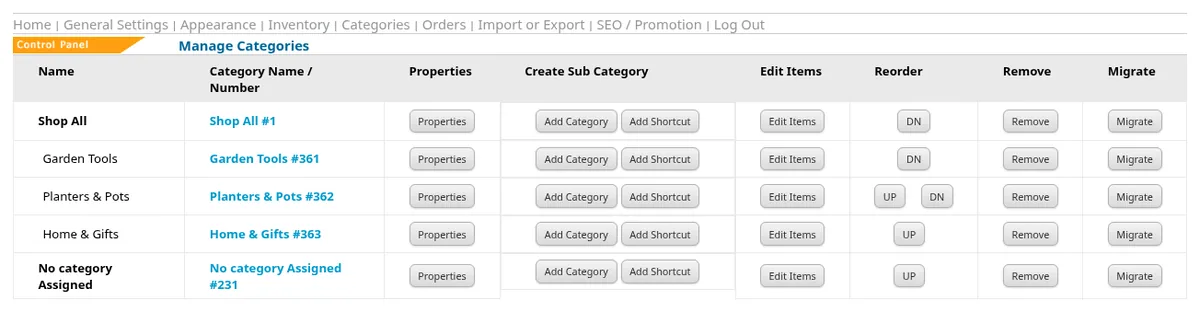
Group similar products so shoppers have a sensible path through your range. Use category names that customers would recognize, rather than names used only inside your business.
- Open Categories in the Control Panel.
- Choose Add Category. Select a parent category and enter the category name.
- Review Slug, the readable name used in its web address. Choose whether to show the category on the list.
- Add a useful category description and save the category. Use Properties when you need to return to its settings.
Create an item
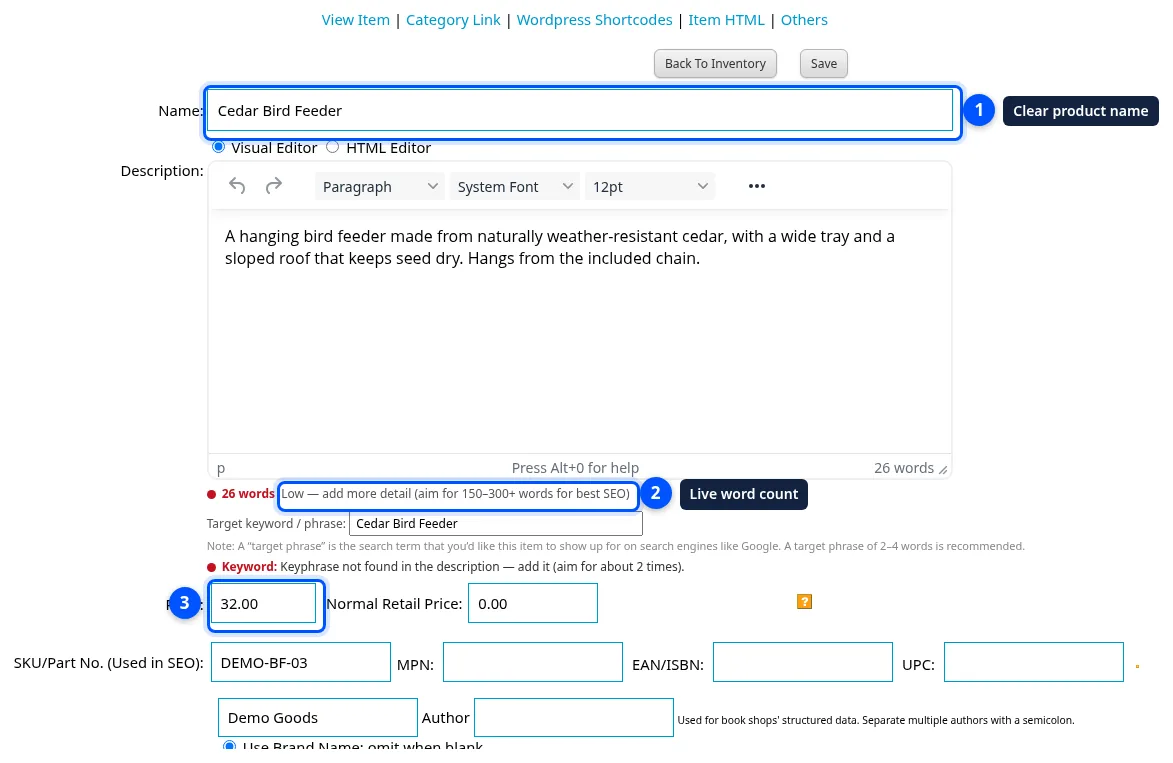
Specific product details help shoppers compare and choose. Write about the item in front of you: what it is, what it is made from, its size, and how someone would use it.
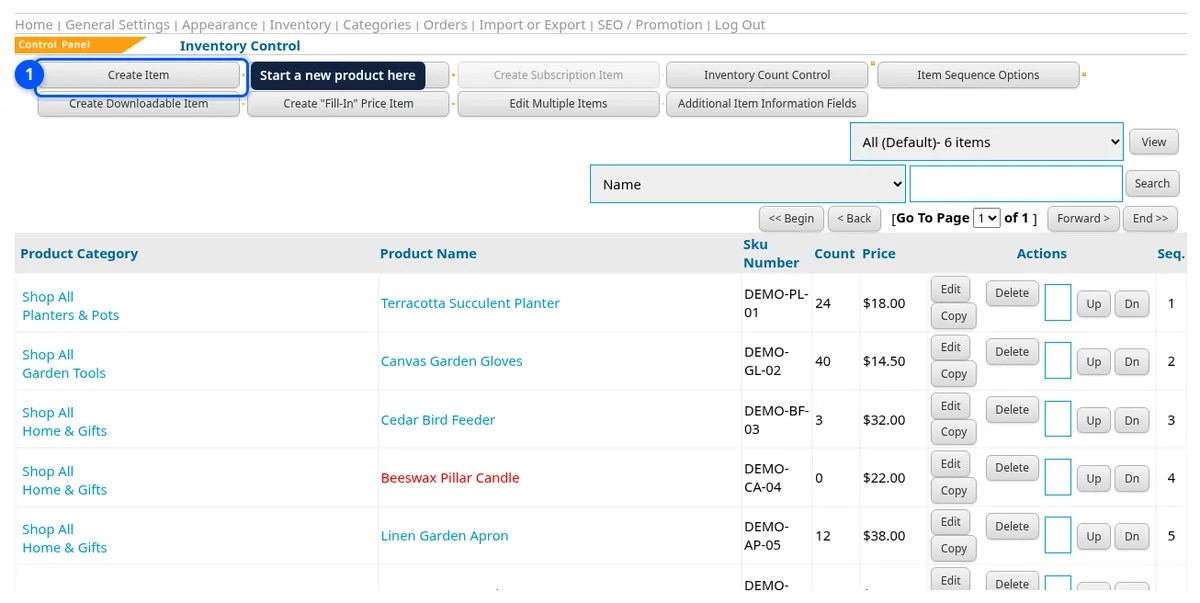
- Open Inventory and select Create Item.
- Enter Name and Description. The description editor shows a word count and a suggested length. Aim for useful detail rather than repeating words.
- Enter Price and your SKU/Part No. if you use one. Check the separate Normal Retail Price field before filling it in.
- Under Categories, assign the item to the right browsing group. Click Save.

Add photos and choices
Photos show details that words can miss. A clear option list also helps shoppers tell you which choice they want.
- Open the saved item from Inventory with its Edit control.
- Expand Item Images, choose the product photo, and click Add Image. Check that the photo shown is the intended one.
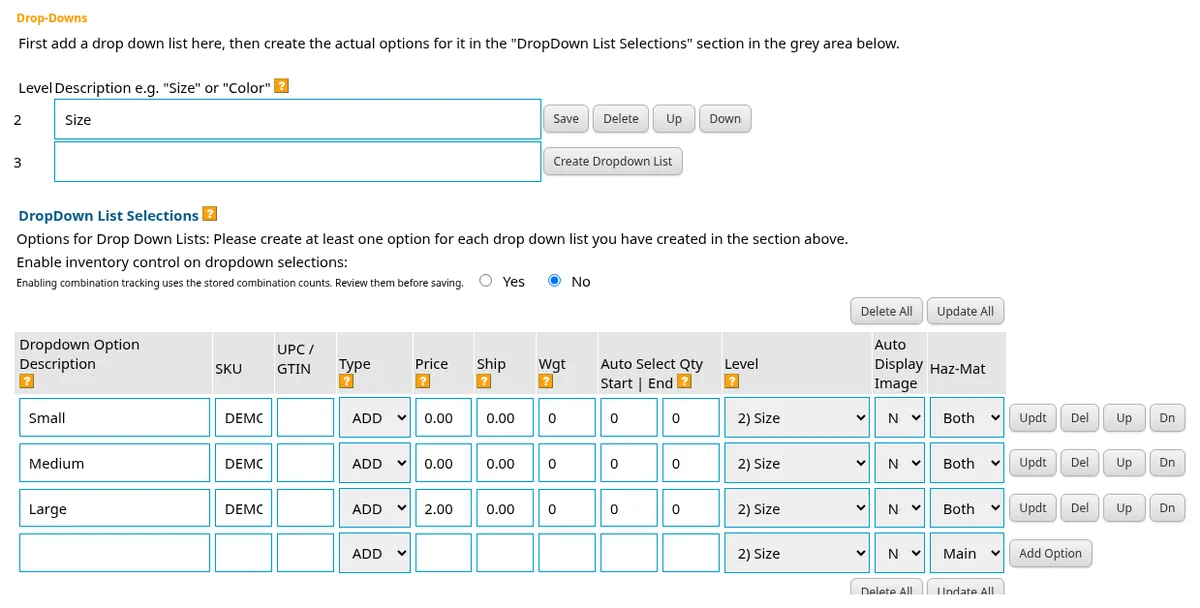
- For an item with choices, open Drop-Downs. Add a clearly named list and its choices, such as Size with Small, Medium, and Large.
- Save the item’s options with Save Item Options and Values. Look at the shopper page to check the photo and choice wording.
The item form also includes a target keyword or phrase, brand, condition, and Google product details such as color, size, and material. Enter the actual brand rather than extra search words. See SEO and Google listings for the search settings. For limited quantities, read inventory and stock control before relying on availability messages.
Questions about your shop? Contact us for help with your next step.