
Give your shop a familiar look and wording that fits your business. Start with small appearance changes, then review the shop and mobile templates. Check a few customer pages together so the whole shopping trip feels consistent.
Review appearance settings
Consistent colors, fonts, images, and buttons make your pages easier to recognize. A small change is easier to check than a full redesign all at once.
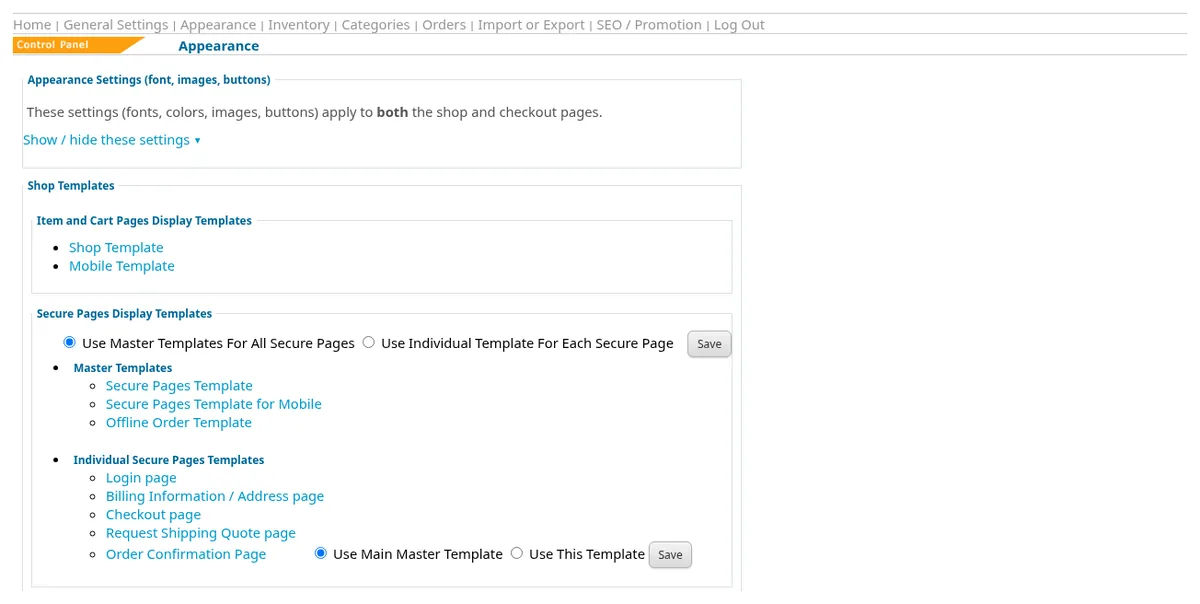
- Open Appearance in the Control Panel.
- Expand Appearance Settings (font, images, buttons). These settings apply to both shop and checkout pages.
- Review the setting you want to change. Save that change with the relevant page control.
- Look at a product page and the cart to see how the change reads alongside your photos and text.
Understand your shop template
Your shop can use your own website’s look through its template. It can also match a WordPress site. The template provides the surrounding page design while the shop supplies its content.
- In Appearance, open Shop Template.
- Review the current template before making a change. Keep a copy of the existing template text so you can refer back to it.
- Find [displayshopitemshere]. This marks where the shop content appears. Keep that placeholder in the intended content area.
- If using a prepared WordPress page, review Use external page or WordPress page as template and its page address setting. Check the page instructions before changing this choice.
- After an intended template change is saved, view the actual shop to check the result.

Appearance also lists secure page templates, with master or individual choices, and an offline order template. These are separate from the main Shop Template. Check the relevant page when reviewing a design change, rather than assuming one preview shows every part of checkout. An Item Custom Layout editor is also available for arranging the item page. Ask for help if you need a larger layout change.
Review the mobile template
Phone shoppers need readable text and easy choices. Review the separate mobile template so your desktop design is not your only reference.
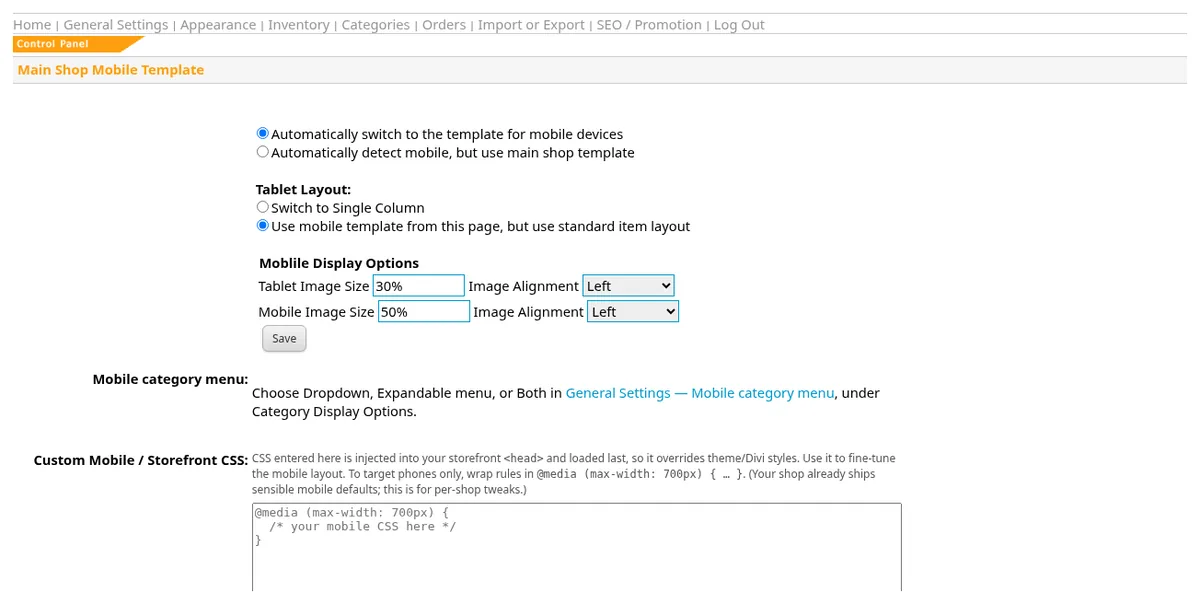
- From Appearance, open Mobile Template.
- Review the current mobile template and the position of its shop content placeholder.
- Save an intended template edit with Update / Save Template.
- View the shop on a phone. Check a category, an item with choices, and the cart for readable text and comfortable buttons.
Use clear customer labels
Familiar words help shoppers understand the forms they fill in. Keep labels short and specific, and check that the wording still describes the action accurately.
- In Appearance, find Customizable Field Options.
- Choose the area you want to review, such as Item Display Page, Cart Page, or Checkout Page.
- Edit the relevant text labels and save with that page’s control.
- Check the wording in the shopper view. Review nearby labels together so instructions remain consistent.
Questions about your shop? Contact us for help with your next step.