
Make your shop’s pages easier to understand in search results and prepare product information for Google listings. Start with accurate product details, then review titles, descriptions, and the tools in SEO / Promotion.
Review addresses and search text
Readable addresses and specific page text help people recognize where a link leads. Use names that describe the product or category clearly.
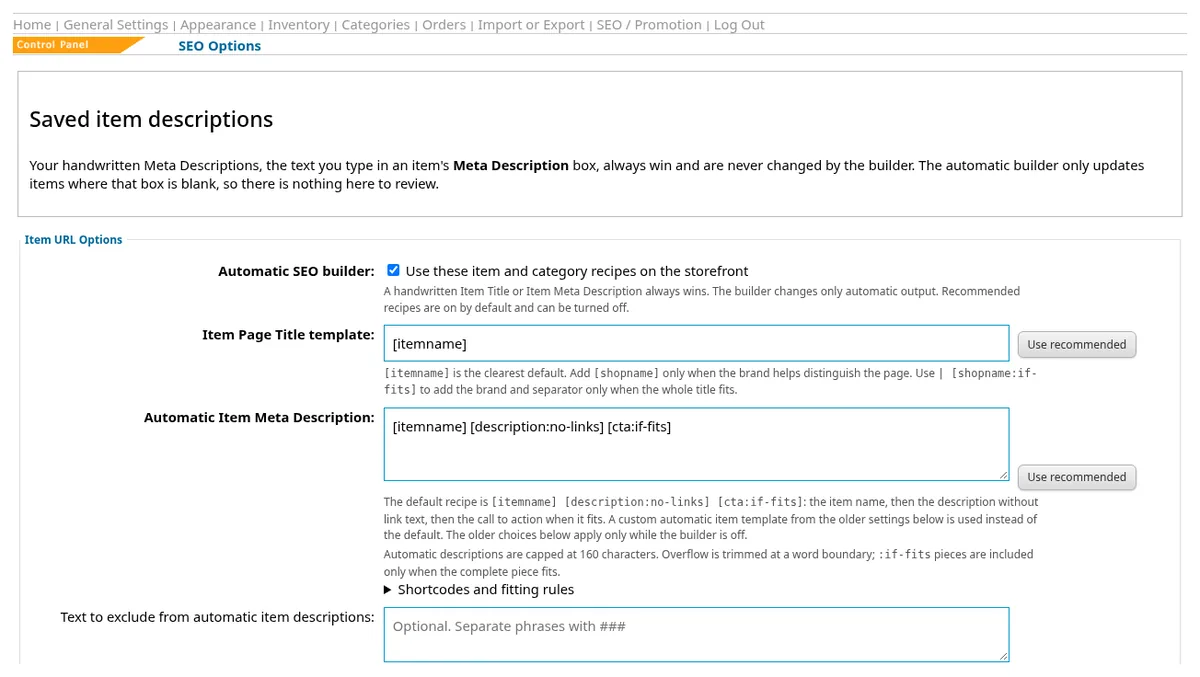
- Click SEO / Promotion in the Control Panel to open the Search Engine Optimization page. Choose its SEO Options link.
- Review the item title and meta description templates. Tags such as [itemname] and [shopname] insert the matching shop information.
- Review the category templates, including [categoryname]. Check an example item and category before saving the relevant settings.
- For a category address, open Categories, then its Properties, and review Slug.
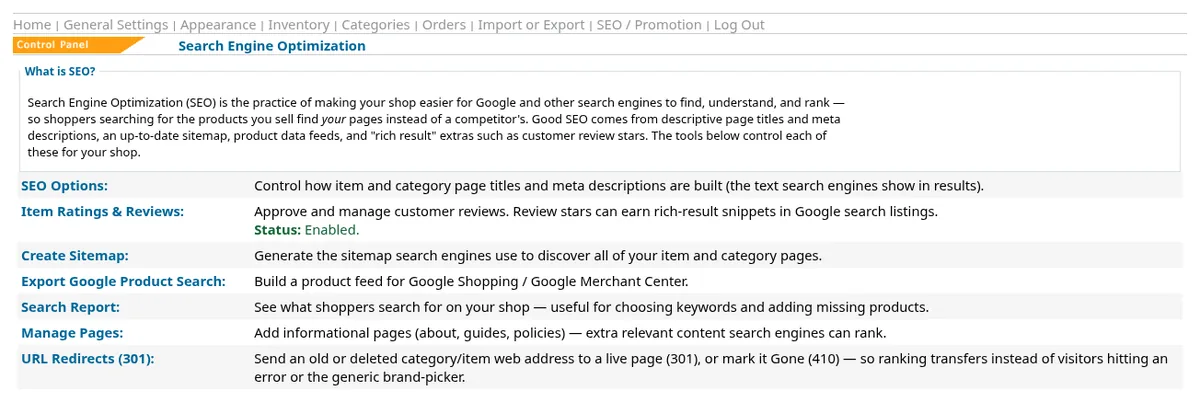
Item and category pages have friendly web addresses, such as /item/sage-green-watering-can-123 and /category/garden-tools. These are examples of the address pattern. A page title names the page; its meta description provides a short summary for search engines. Saved item descriptions entered by hand take priority over the automatic description builder.
Review the sitemap
A sitemap gives search engines a list of shop pages to discover. You can review the sitemap tools after adding or organizing products.
- Click SEO / Promotion to open the Search Engine Optimization page, then choose its Create Sitemap link.
- Review the XML sitemap option for shop categories and items. The page also offers an HTML sitemap for visitors.
- Use the relevant Generate button if you need a rebuild now. The page notes that sitemap generation is also automatic.

Prepare the Google product feed
A product feed provides organized product information for Google Merchant Center. Accurate values help keep the information consistent with what customers see in your shop.
- In Inventory, edit items and review their brand, condition, and applicable Google Product Search values.
- Click SEO / Promotion, then choose SEO Options on the page that opens. Under Google Merchant Center product feed, review Build Google product feed.
- Choose Yes and save the relevant settings when ready to enable scheduled feed building. Use the feed-file link to review the result.
- In Google Merchant Center, use the full HTTPS feed address from your shop. Return to SEO Options to enter actual handling and transit ranges under Shipping delivery time.
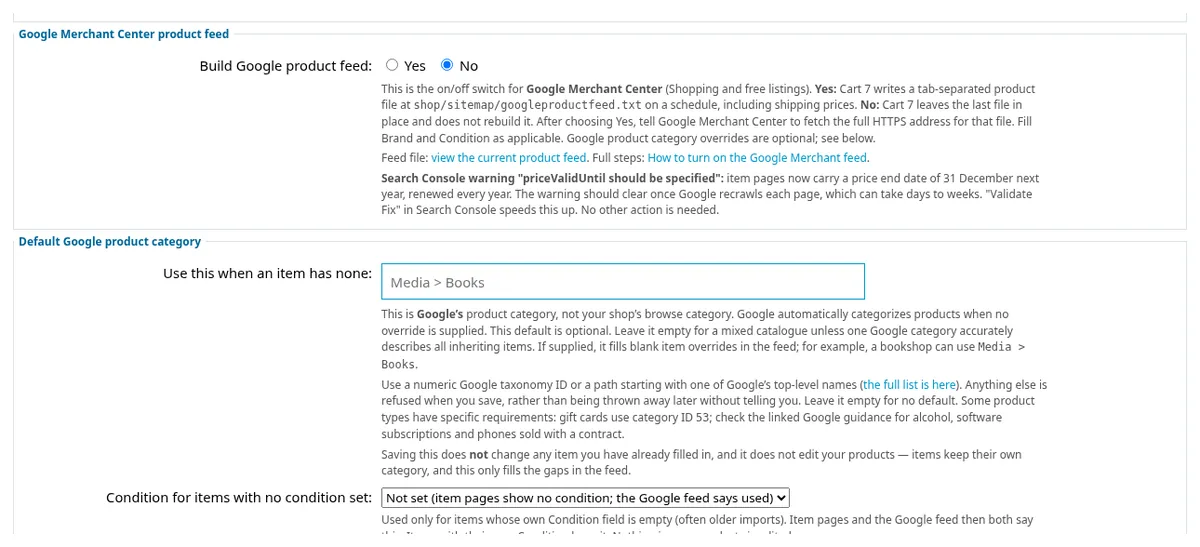
The feed file is at /shop/sitemap/googleproductfeed.txt. Turning feed building off leaves the last file in place. Google product categories are separate from your shop’s browsing categories. See products, photos, and options for item details and shipping for rate settings.
Keep links useful and manage reviews
A replacement link helps visitors reach a useful page after an old address changes. Reviews also help shoppers learn from other customers.
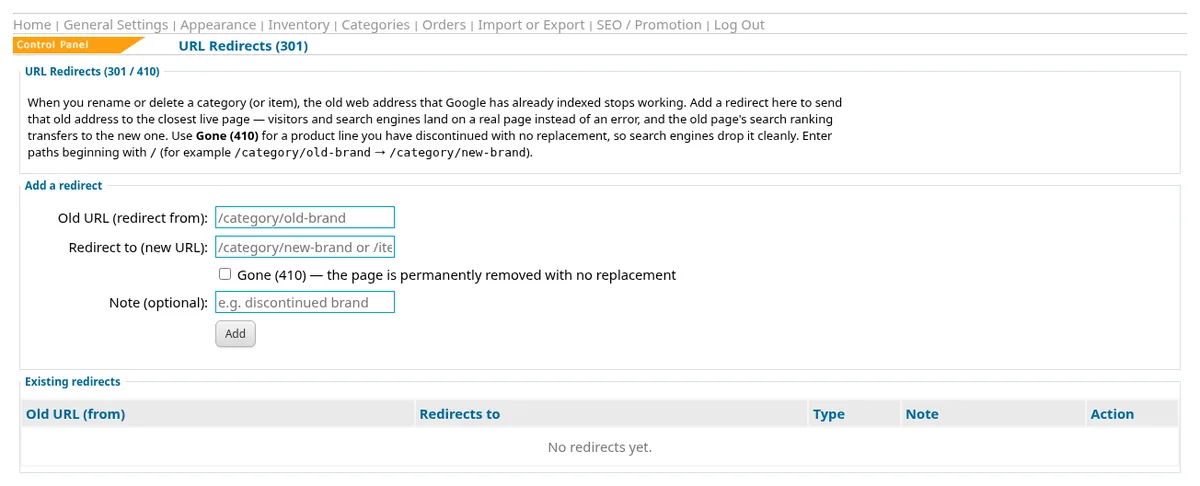
- Click SEO / Promotion, then choose URL Redirects (301) on the page that opens. Add an old item or category address and its relevant replacement using the page’s redirect form.
- Check that the old address takes you to the intended replacement page.
- Return to the page opened by SEO / Promotion and choose Item Ratings & Reviews to approve and manage customer reviews.
Review stars can be eligible for Google search listings. Google decides whether to display them. Keep your attention on useful product information and honest reviews rather than expecting a particular search appearance.
Questions about your shop? Contact us for help with your next step.