
Use a clear offer to give shoppers a reason to buy, and keep its rules easy to understand. This guide covers promotional codes, gift certificate records, and checkout discounts. Choose the tool that fits the offer you want to make.
Create a promotional code
A named code gives you a simple offer to share. Start with one code and check its value before using it in a message or on your website.
- In the Control Panel, point to (hover over) SEO / Promotion in the top menu. Choose Promotional / Coupon Codes from its drop-down submenu to open Manage Promotional Codes.
- Select View New Promo Code Form. Enter a Promotional Code Name, such as SPRING10.
- For the example offer, enter 10 in Amount, choose % Discount as the Code Type, and enter a custom message.
- Choose Select All Categories. Review the offer, then click Create This Promotional Code. Check SPRING10 under Existing Promotional Codes.

Check code options
Consistent code entry helps customers use your offer. Decide how codes should behave before telling shoppers where to enter them.
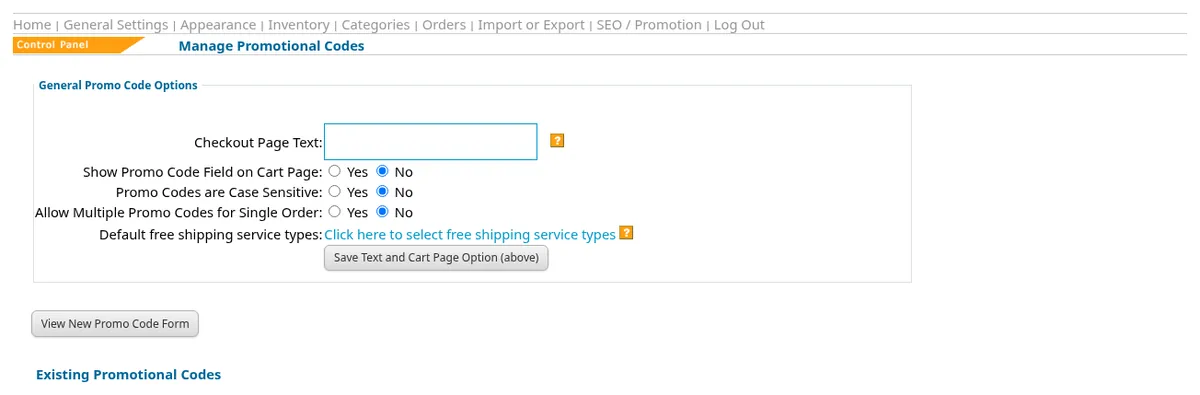
- On Manage Promotional Codes, find General Promo Code Options.
- Review Checkout Page Text and Show Promo Code Field on Cart Page. Choose wording and visibility that fit your instructions.
- Review Promo Codes are Case Sensitive and Allow Multiple Promo Codes for Single Order. Set them to match your offer rules.
- For free shipping codes, check the default free shipping service types. Use Save Text and Cart Page Option (above) to save the general options.
Manage gift certificates
Gift certificates give buyers a way to let someone else choose. The record list helps you find a certificate and review its status and remaining balance.
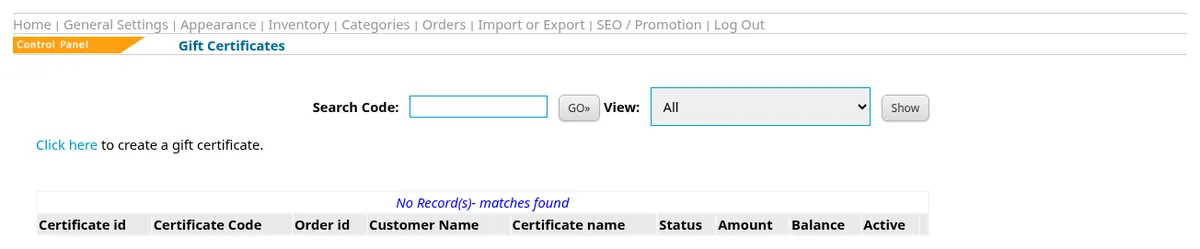
- From Home, open Gift Certificates.
- Use Search Code to find a particular certificate, or choose a View filter. The choices include active, non-active, and zero-balance certificates.
- Review the matching record’s status, amount, balance, and active column.
- To create a gift certificate item, follow Click here to create a gift certificate and complete the item form.
A purchased gift certificate supplies a code on the confirmation page and in the buyer’s email. The recipient can use that code at checkout for the certificate credit. Gift certificates never use stock control. See inventory and stock control for how physical products are handled.
Set discount rates
Quantity or purchase-value discounts can suit an offer that does not rely on a shared code. Keep the ranges easy to explain and review them before advertising the offer.
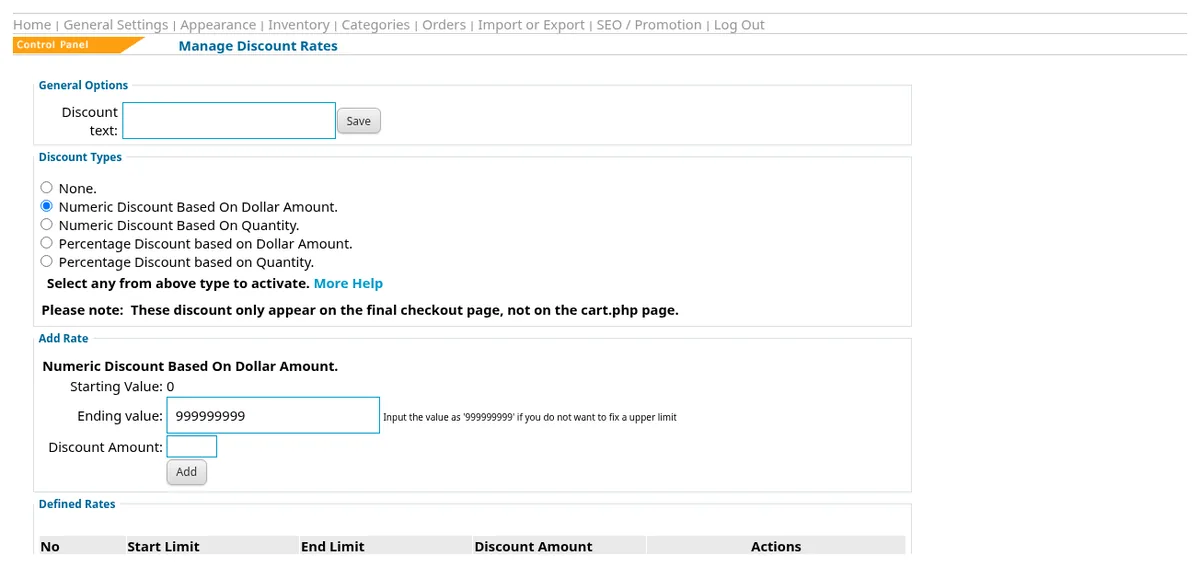
- Open Manage Discount Rates in the Control Panel.
- Choose a numeric discount or a percentage discount, based on dollar amount or quantity.
- Under Add Rate, enter the starting and ending values and discount amount for the selected type.
- Save the rate and review it in Defined Rates. Check the final checkout page when reviewing the result.
Questions about your shop? Contact us for help with your next step.